Where a plain calendar falls short
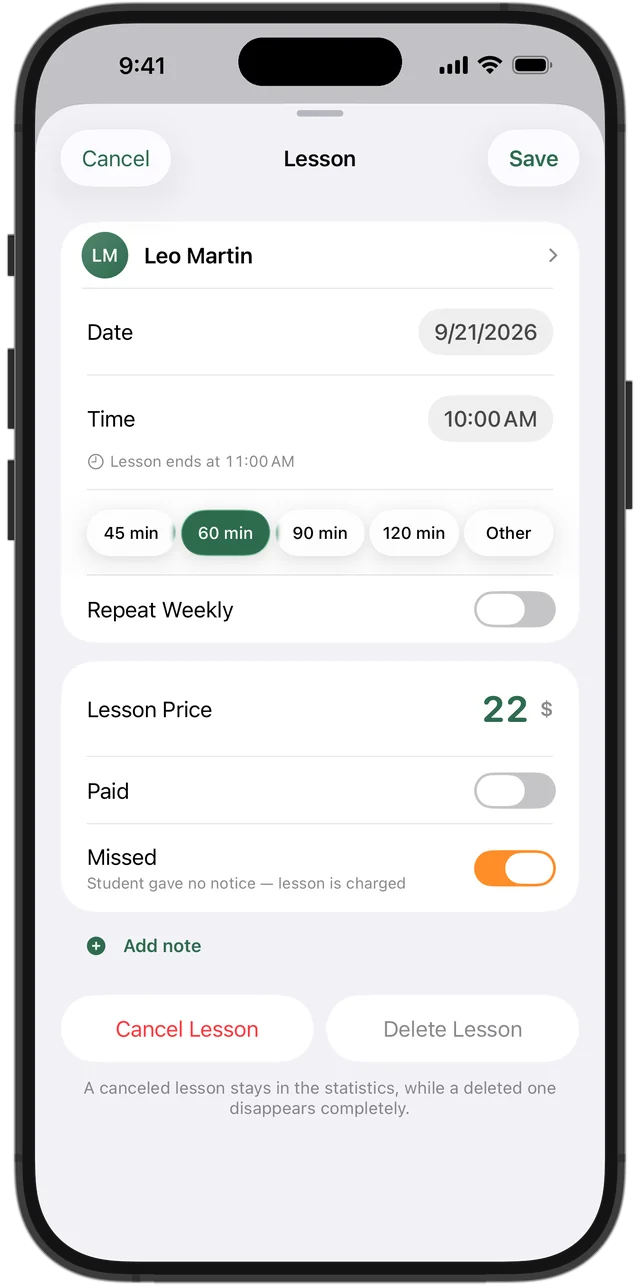
A calendar is great for time: it reminds you, it syncs everywhere, and it is already on your phone. But an event doesn't know the lesson's price, whether it was paid, whether the student missed it, or how much you earned this month.
Tutors who keep lessons in a calendar usually end up with a second list somewhere for money. Moving to an app that holds both removes that second list.
Before you import: tidy up the calendar
An import can only be as good as your events. A few minutes of cleanup makes the result much better.
- Put the student's name in the event title, the same way every time
- Make regular lessons repeating weekly events, not copies
- Delete old one-off events you no longer need in the next weeks
- Know each student's price — you will set it during import
Try it free for 14 days · No card required. Subscribe only once the app has proven it's worth it to you.
Download on the App Store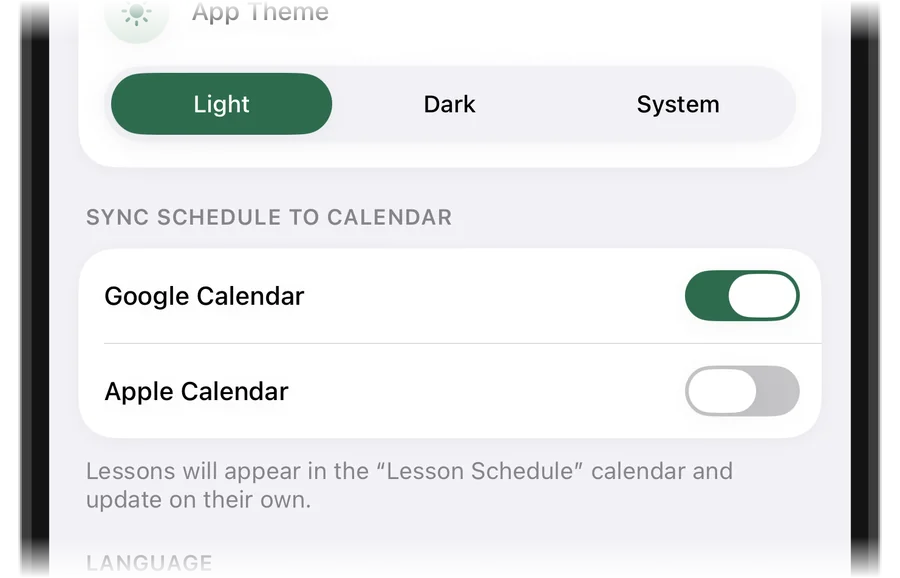
Importing into Squool
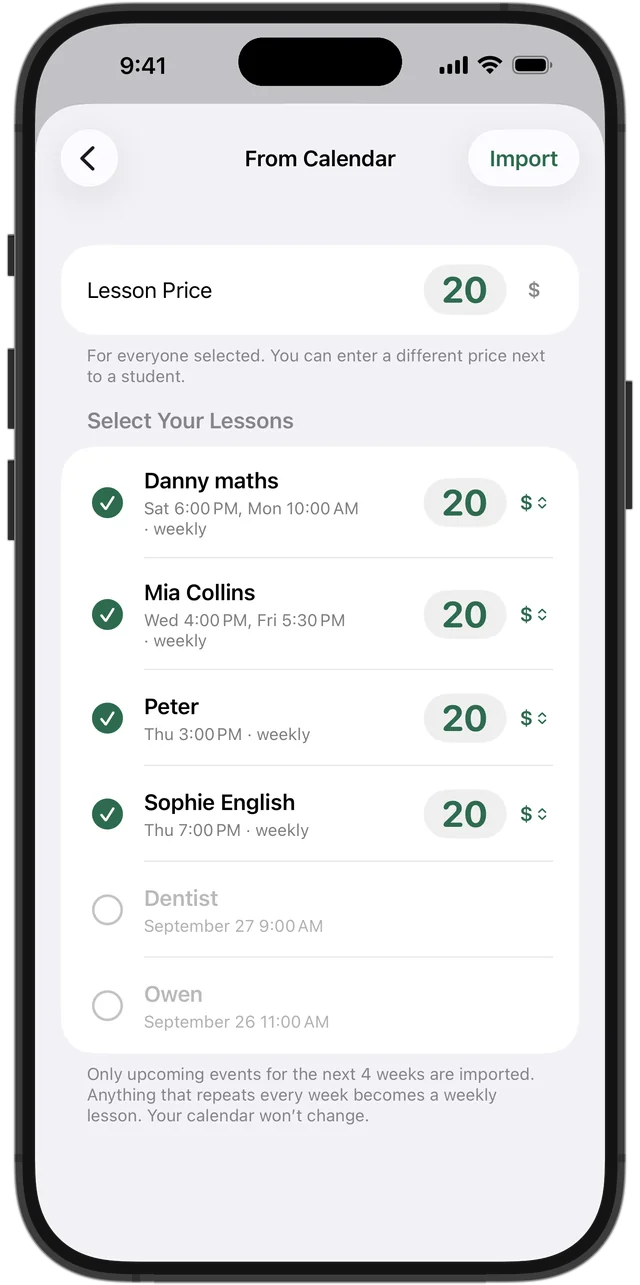
Start from the empty schedule (“Add students and lessons from your calendar”) or later from Settings with “Import from Apple / Google Calendar”. Squool looks at events for the next 4 weeks, finds the ones that look like lessons and suggests the students. Anything that repeats every week becomes a weekly lesson.
You choose which students to bring over and set a price for everyone, with a different price next to any student. Your calendar itself is not changed.
Google Calendar on iPhone, iPad and Mac
If your lessons are in Google Calendar, add your Google account to the device's Calendar accounts and turn on Calendars — Squool shows these steps, and then it can read the events. Squool asks for permission to see your calendar; you can change that in the system settings at any time.
Syncing the schedule back to your calendar
After the move, you can still see lessons in your usual calendar. In Settings, turn on “Sync Schedule to Calendar” with Google Calendar or Apple Calendar. Lessons appear in a separate calendar and stay up to date when you move, cancel or add one.
In Google Calendar, lessons are also colored by payment state: paid, owed, prepaid or upcoming. The sync goes one way: you plan and change lessons in Squool, and the calendar follows. Edits made in the calendar are not copied back.
Everything stays yours
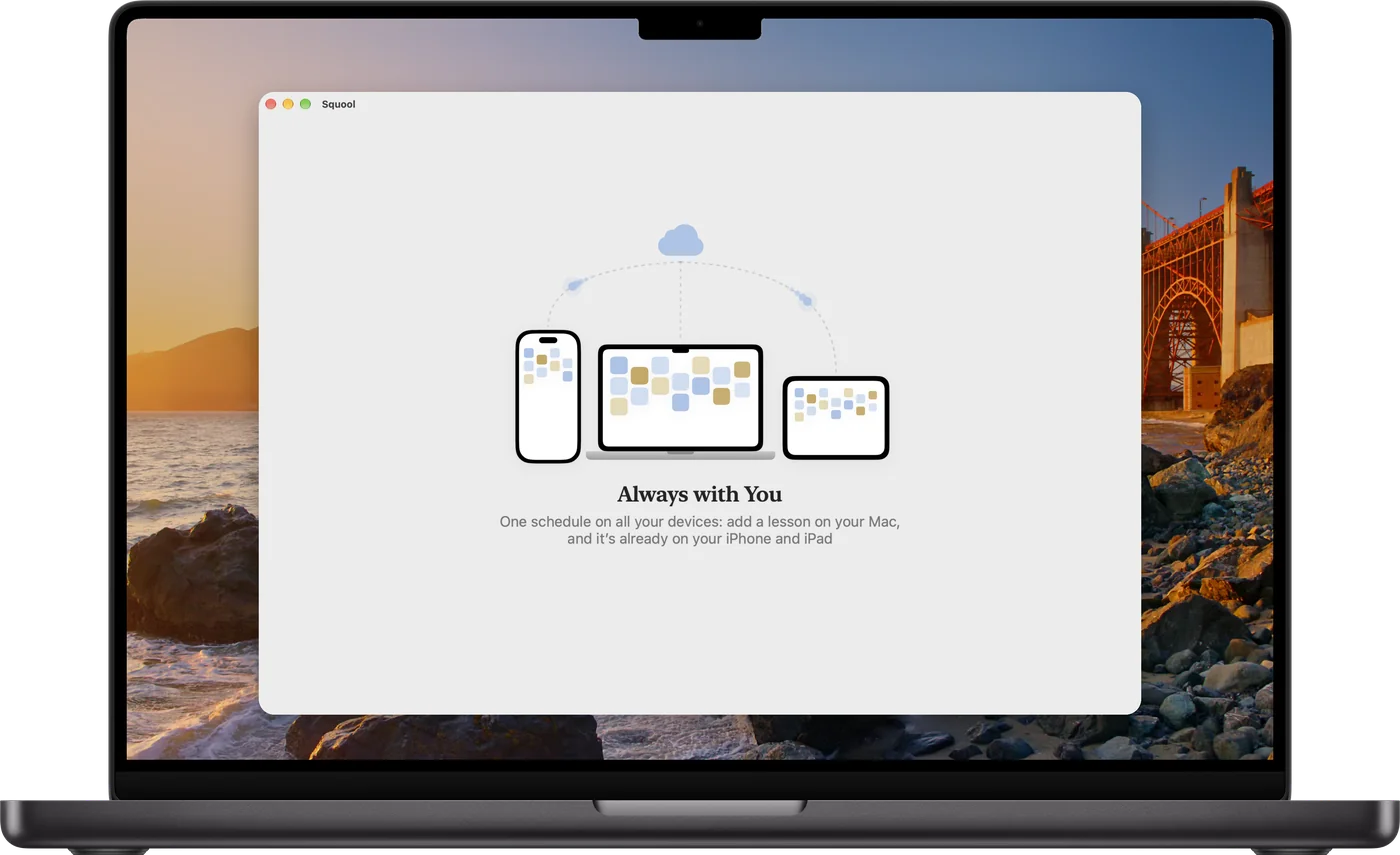
Squool runs on iPhone, iPad and Mac and syncs between them through your own iCloud, with no account to create. Your students and payments stay on your device and in your iCloud. Try it free for 14 days, no card required.
Questions and answers
Can I import my tutoring schedule from Google Calendar?
Yes. Squool can bring students and weekly lessons over from Google Calendar or Apple Calendar, using events for the next 4 weeks. Your calendar is not changed.
Does Squool sync with Google Calendar?
Yes, one way: lessons from Squool appear in Google Calendar or Apple Calendar and update when you move, cancel or add them.
Will changes I make in Google Calendar show up in Squool?
No. The sync goes from Squool to the calendar; plan and change lessons in Squool.
Can I see in Google Calendar who has paid?
Yes. In Google Calendar, Squool colors lessons by payment state: paid, owed, prepaid or upcoming.
Do I have to enter my students by hand?
Not if your lessons are in a calendar: the import suggests students and recurring lessons. You only set the prices.
Read also
Recurring lessons
How to plan a weekly tutoring schedule: students twice a week at different times, moving one lesson, changing time or price for future lessons, ending a series.
Spreadsheet or app
An honest comparison for tutors: when a notebook, Excel or a Google Sheets tracker is enough, which columns it needs, and when a tutoring app saves time.
Tracking payments
A simple way to track tutoring payments: one balance per student, prepaid lessons, who owes you and how much. Works on paper, in a sheet or in an app.
Online tutors
Teach over Zoom or Google Meet? Track your schedule, students abroad paying in USD, EUR or GBP, and monthly income on iPhone, iPad and Mac.
Try it free for 14 days
No card required. Subscribe only once the app has proven it's worth it to you.
Download on the App Store